What Is OpenClaw? The Browser-Based AI Agent Explained
OpenClaw runs an AI coding agent entirely in your browser — no install, no local runtime. How it works, what it is good at, and how to connect any model to it.

Contents
Most AI coding agents live in an editor or a terminal. OpenClaw takes a different route: it runs entirely in the browser. No extension to install, no local runtime, no npm install. Open a tab, paste an API key, and you have an agent.
That design choice shapes everything about it — the strengths, the limits, and the security considerations.
What OpenClaw actually is#
OpenClaw is a browser-based AI agent interface. The page you load is the client: it holds your conversation, manages tool calls, and talks directly to whichever model API you configure.
Because it runs client-side, there is no server in the middle holding your key or your code. The trade-off is that everything it can do is bounded by what a browser tab is allowed to do.
How it differs from editor agents#
| OpenClaw | Kilo Code / Cline | Cursor | opencode | |
|---|---|---|---|---|
| Runs in | Browser tab | VS Code | Standalone editor | Terminal |
| Install | None | Extension | App download | Package manager |
| Filesystem access | Upload / paste only | Full workspace | Full workspace | Full workspace |
| Runs commands | No | Yes | Yes | Yes |
| Works on any device | Yes | No | No | No |
| Key stored | Browser storage | Extension settings | App settings | Config file |
The pattern is clear: OpenClaw trades depth of integration for zero setup and universal access.
What it is genuinely good for#
Trying a model before committing. No install means no cleanup. Paste a key, run a few prompts, decide.
Working from a device you do not control. A borrowed laptop, a locked-down work machine, a tablet. Anywhere with a browser.
Quick one-off tasks. Explain this error, review this function, convert this JSON to a type definition. Things that do not need repository context.
Teaching and demos. Everyone in a room can follow along without installing anything.
What it cannot do#
Read your project. No filesystem access. You paste or upload what the model should see.
Run commands or tests. No shell. It can write a test but cannot execute it.
Multi-file refactoring. Without repository access, coordinated edits across files are impractical.
For those, use an editor agent — Kilo Code or Cline — and keep OpenClaw for what it does well.
Connecting OpenClaw to Clean APIs#
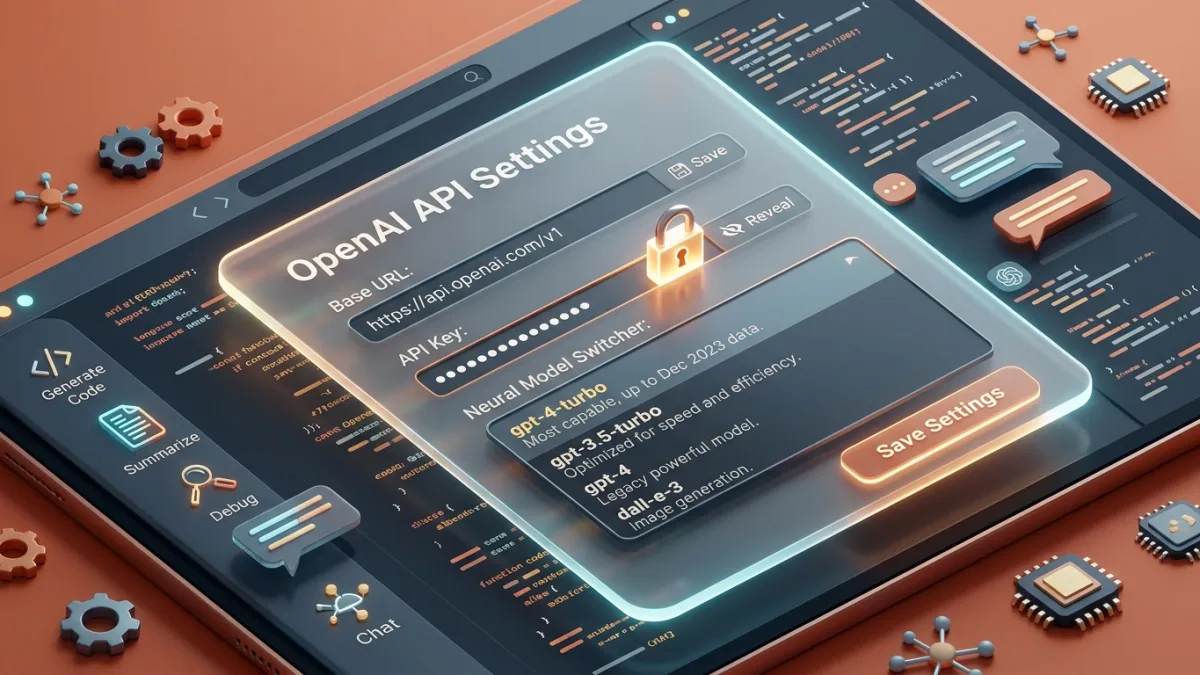
OpenClaw accepts any OpenAI-compatible endpoint, so it connects to all 31 Clean APIs models with one key.
- Open OpenClaw settings → Model provider
- Choose Custom / OpenAI compatible
- Fill in:
| Field | Value |
|---|---|
| API base | https://cleanapis.com/v1 |
| API key | your cc_… key |
| Model | claude-opus-4.8 |
- Save and start a conversation
Get a key free at cleanapis.com — 5M tokens a month, no card.
Why CORS matters here#
A browser blocks cross-origin requests unless the server explicitly permits them. Many AI APIs never configured CORS because they assumed server-side callers, which is why browser tools often need a proxy.
Clean APIs sends the right CORS headers on /v1/*, so OpenClaw talks to us directly — no proxy, no relay, no third party in the path.
We authenticate via Bearer token rather than cookies, so a permissive origin policy carries no session-hijacking risk.
Security: read this part#
Your API key lives in browser storage. Anyone with access to that browser profile can read it. Treat it accordingly.
Create a dedicated key. Do not reuse the key from your server-side application.
Narrow the scopes. Clean APIs keys support scoping. For OpenClaw, inference plus models:read is enough — leave embeddings off if unused.
Revoke when done. If you used a shared or borrowed machine, revoke that key from Dashboard → API Keys afterwards. It takes one click and takes effect immediately.
Rotate rather than hunt. Lost track of which key is where? Use Rotate to issue a replacement and kill the old one in the same action.
Watch the usage. Every request shows up in Dashboard → Usage with its cost. Unexpected activity on a browser key is visible immediately.
Picking a model for browser use#
Browser agents are conversational rather than agentic, which changes the calculus:
| Priority | Reasoning |
|---|---|
| Speed matters most | You are watching output stream in real time |
| Context matters less | You are pasting snippets, not whole repositories |
| Tools rarely used | No filesystem or shell to call into |
| Vision is useful | Pasting screenshots is the natural input method |
A fast mid-tier model with vision usually beats an expensive reasoning model here. Filter by capability on the models page.
If you are debugging something genuinely hard, switch to a reasoning model for that conversation — every Clean APIs plan reaches every model, so switching costs nothing but a dropdown change.
Making the most of it#
Paste generously. The model only knows what you give it. Include the error, the relevant code, and the versions involved.
Use screenshots. For UI problems, a screenshot beats three paragraphs of description. Check the model has the vision capability first.
Start fresh for new topics. History is resent every turn, so a long conversation about an unrelated problem is pure cost. New topic, new conversation.
Ask for the diff, not the file. "Show me just the lines to change" produces less output, costs less, and is easier to apply.
When to graduate to an editor agent#
Move to Kilo Code, Cline, Cursor, or opencode when you find yourself:
- Pasting the same files repeatedly
- Wanting the agent to run tests
- Making changes across more than two or three files
- Working on the same project daily
OpenClaw stays useful even then — it is the tool you reach for on a device where nothing is installed.
Next steps#
Get a free API key and try OpenClaw with 31 models — 5M tokens monthly, no card.
Ready to build?
Everything in this article works on the free tier — 5M tokens every month, all 33 models, no card.