Vision AI — Sending Screenshots and Images to a Model
How image input works, base64 vs URLs, what it costs, and why a tool sometimes refuses to attach a screenshot even when the model supports it.
Contents
Vision turns "I have a bug" into "here is the bug." Paste a screenshot of a broken layout, an error dialog, or a design mockup, and the model works from what you see rather than your description of it.
This covers the mechanics, the cost, and the capability-detection problem that makes tools refuse images for reasons that look arbitrary.
The request shape#
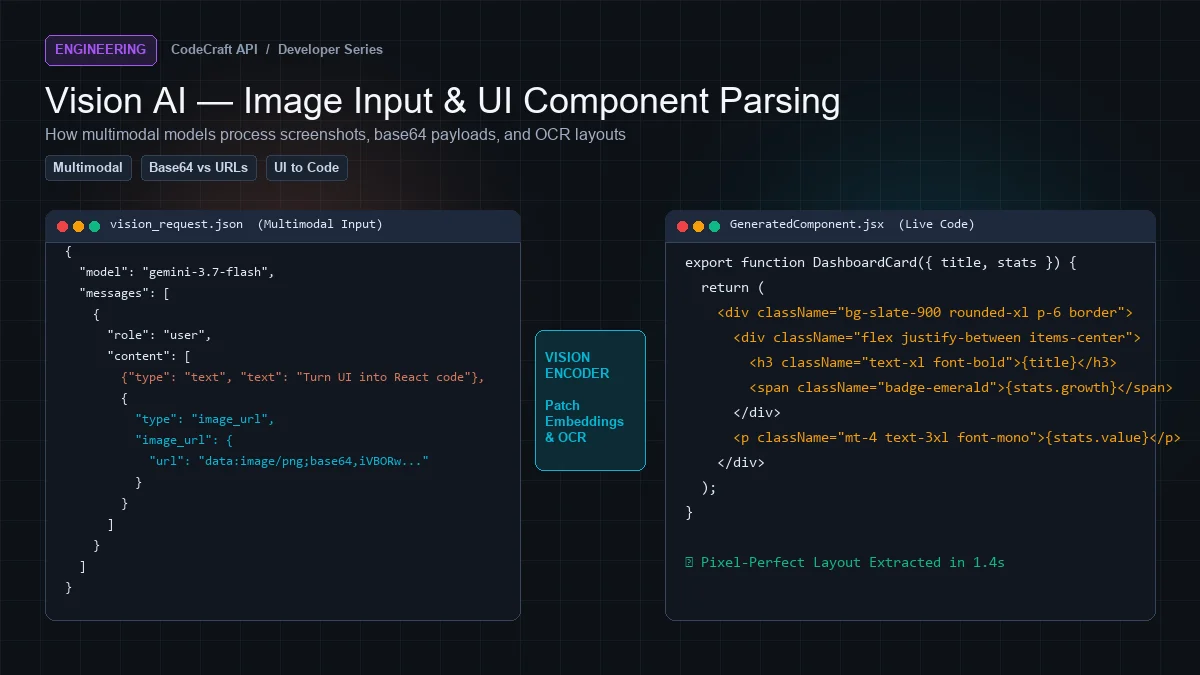
For text-only requests, content is a string. For vision, it becomes an array of parts:
{
  "model": "claude-opus-4.8",
  "messages": [{
    "role": "user",
    "content": [
      {"type": "text", "text": "What is wrong with this layout?"},
      {
        "type": "image_url",
        "image_url": {"url": "data:image/png;base64,iVBORw0KGgoAAAANS..."}
      }
    ]
  }]
}
Order matters for clarity — put the text first so the model reads the question before the image.
Base64 vs URL#
Two ways to supply an image.
Base64 data URI — the image travels in the request:
import base64

with open("screenshot.png", "rb") as f:
    encoded = base64.b64encode(f.read()).decode()

image_part = {
    "type": "image_url",
    "image_url": {"url": f"data:image/png;base64,{encoded}"},
}
Public URL — the provider fetches it:
image_part = {
    "type": "image_url",
    "image_url": {"url": "https://example.com/screenshot.png"},
}
| Base64 | URL | |
|---|---|---|
| Works for local files | Yes | No |
| Works for private images | Yes | No |
| Request size | Large | Small |
| Needs public hosting | No | Yes |
| Latency | Upload time | Fetch time |
Use base64 for anything local or private, which in practice is most screenshots. Use URLs for images already on a CDN.
Complete example#
import base64
from openai import OpenAI

client = OpenAI(api_key="cc_your_key_here", base_url="https://cleanapis.com/v1")

with open("screenshot.png", "rb") as f:
    encoded = base64.b64encode(f.read()).decode()

response = client.chat.completions.create(
    model="claude-opus-4.8",
    messages=[{
        "role": "user",
        "content": [
            {"type": "text", "text": "Describe this UI and list every button."},
            {"type": "image_url", "image_url": {
                "url": f"data:image/png;base64,{encoded}"
            }},
        ],
    }],
    max_tokens=1000,
)

print(response.choices[0].message.content)
Multiple images#
Add as many image_url parts as needed in one message:
{
  "role": "user",
  "content": [
    {"type": "text", "text": "What changed between these two screenshots?"},
    {"type": "image_url", "image_url": {"url": "data:image/png;base64,AAA..."}},
    {"type": "image_url", "image_url": {"url": "data:image/png;base64,BBB..."}}
  ]
}
Before-and-after comparison is one of the most useful vision applications for developers — visual regression, layout drift, design review.
Limits#
| Property | Value |
|---|---|
| Formats | PNG, JPEG, WebP, GIF (first frame) |
| Max per image | 5 MB |
| Max request payload | 8 MB total |
Base64 inflates size by roughly 33%, so a 4 MB PNG becomes about 5.3 MB encoded. Compress before encoding if you are near the limit.
What it costs#
Images are billed as prompt tokens, scaled by resolution. A typical screenshot runs a few hundred to a few thousand tokens.
The practical consequence: downscale unless detail matters. Reading an error message needs far less resolution than inspecting a design at pixel level. A 4K screenshot can cost several times a 1024px one for identical usefulness.
from PIL import Image

def prepare(path: str, max_width: int = 1280) -> str:
    img = Image.open(path)

    if img.width > max_width:
        ratio = max_width / img.width
        img = img.resize((max_width, int(img.height * ratio)))

    # ... encode and return base64
Token usage is reported normally:
"usage": {
  "prompt_tokens": 1284,      // includes the image
  "completion_tokens": 210,
  "total_tokens": 1494
}
Why tools refuse images#
This is the confusing part, and it is not a bug.
Agents like Kilo Code and Cline check whether a model supports vision before attaching an image. They read architecture.input_modalities from the models endpoint:
{
  "id": "claude-opus-4.8",
  "architecture": {
    "modality": "text+image->text",
    "input_modalities": ["text", "image"],
    "output_modalities": ["text"]
  },
  "capabilities": ["reasoning", "vision", "tools", "streaming"]
}
If "image" is absent, the tool refuses client-side with something like:
ERROR: Cannot read "image.png" (this model does not support image input)
That error never reaches the API. It happens in the extension.
Two implications:
The fix is switching models, not changing settings. No configuration makes a text-only model accept images.
A provider that omits this metadata breaks vision even on capable models. The tool cannot tell, so it assumes no. This is one of the more common ways "OpenAI-compatible" providers quietly fail with agent tooling.
→ OpenAI-compatible APIs explained
Checking capability yourself#
Filter by the 🖼️ Vision badge on the models page, or check at runtime:
models = client.models.list()

vision_models = [
    m.id for m in models.data
    if "vision" in getattr(m, "capabilities", [])
]
Guard before sending:
def send_image(model_id: str, image_b64: str, question: str):
    model = client.models.retrieve(model_id)

    if "vision" not in getattr(model, "capabilities", []):
        raise ValueError(f"{model_id} does not accept image input")

    # ... proceed
Better than catching a 422 after the fact.
Errors#
Sending an image to a text-only model returns:
{
  "error": {
    "message": "This model does not support image input.",
    "type": "invalid_request_error",
    "code": "unsupported_content"
  }
}
Exceeding the payload limit returns 413. Both are clear rather than generic, so you can branch on them.
What vision is genuinely good at#
Reading errors from screenshots. Faster than transcribing a stack trace, and preserves surrounding context.
UI review. "Is this accessible? What is the contrast on the disabled button?"
Mockup to code. Give a design, get a component. Not perfect, but a real starting point.
Diagram interpretation. Architecture diagrams, ER diagrams, flowcharts.
Visual regression. Two screenshots, ask what changed.
Reading tables from images. Screenshots of dashboards or PDFs.
What it is not good at#
Pixel-exact measurement. It will approximate spacing, not measure it.
Small text at low resolution. If you cannot read it, neither can the model — send a higher resolution crop instead of the whole screen.
Counting many similar items. Reliability drops with quantity.
Anything where you need certainty. Treat output as a well-informed reading, not ground truth.
In the playground#
If you want to try this without writing code, the playground accepts images when the selected model supports vision:
- Attach via the paperclip, or paste with
Ctrl+V - Up to 4 images, 5 MB each
- The attach button only appears for vision-capable models
Next steps#
Get a free API key — 5M tokens monthly, vision models on every plan.
Ready to build?
Everything in this article works on the free tier — 5M tokens every month, all 33 models, no card.